Nexa AI Solutions
ERP IntegrationsMay 7, 20266 min read

QuickBooks Excel Add-in Automation for Finance Reporting

A practical guide to connecting QuickBooks with Excel add-ins for reports, invoices, customers, validation, and accounting workflows.

QuickBooks Excel Add-in Automation for Finance Reporting

Why QuickBooks and Excel belong together

Finance teams often use QuickBooks as the accounting system and Excel as the analysis layer. A custom Excel add-in can make that connection repeatable, validated, and easier to support.

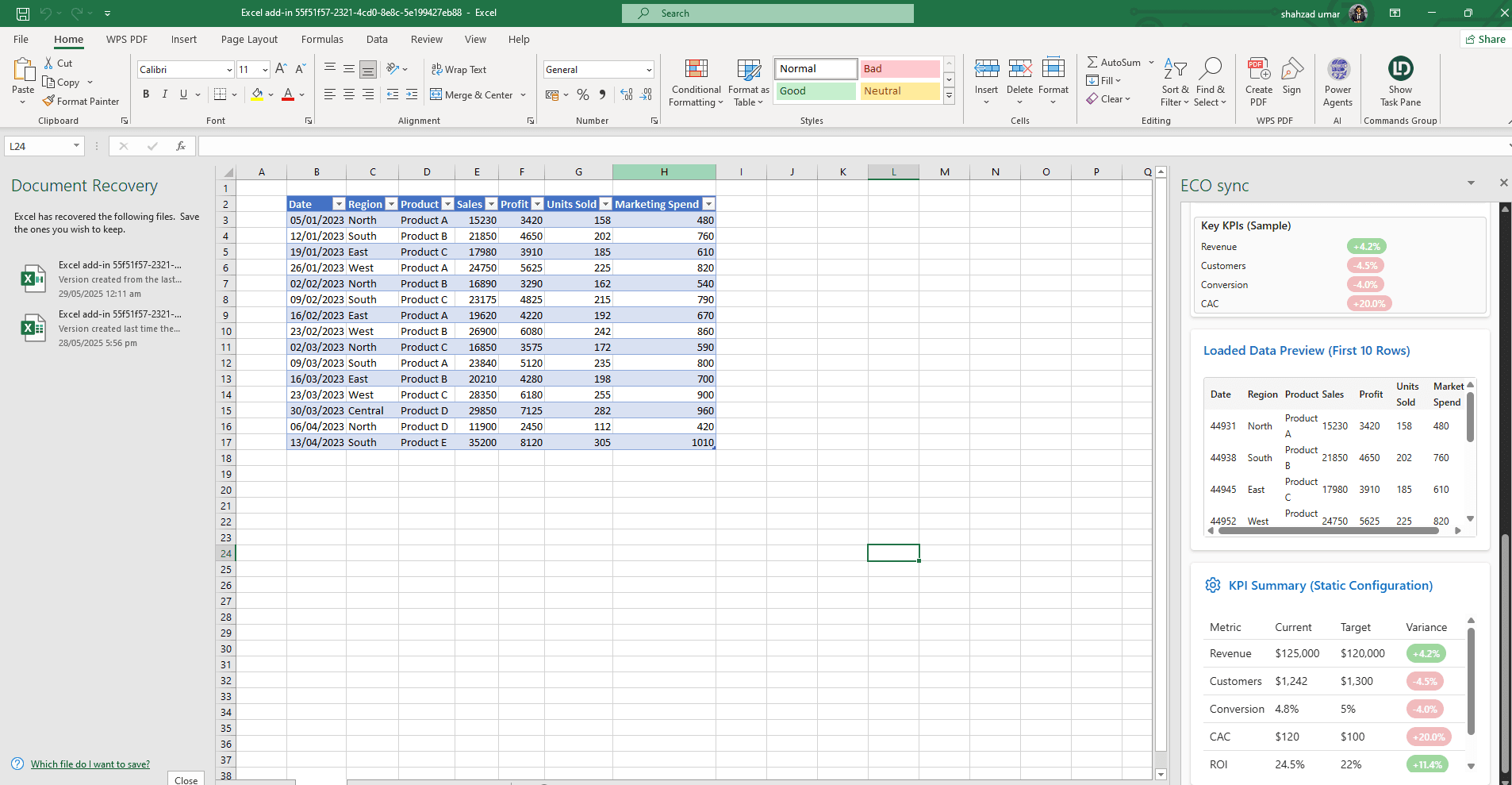
Instead of downloading exports manually, users can refresh controlled reports, pull invoice data, review customer balances, and prepare documents from one task pane.

High-value QuickBooks Excel workflows

The best first version usually targets one clear reporting or approval process.

  • Refresh invoice, payment, customer, or expense reports inside Excel.
  • Validate spreadsheet rows before sending approved updates to QuickBooks.
  • Generate Word invoices, statements, or finance summaries from accounting data.
  • Create audit-friendly logs for imports, exports, and failed API requests.
  • Support role-based access for finance users and managers.

What to prepare before development

Share sample reports, QuickBooks objects, API access, validation rules, user roles, and the exact steps users currently do manually.

Common questions

What is an Office 365 add-in?
An Office 365 add-in is a web application that runs inside Excel, Outlook, Word, or PowerPoint using Office.js, so teams automate work without leaving Microsoft 365.
How long does a custom Office add-in project take?
Discovery is typically 1–2 weeks. A focused Build for one Office app is often 6–12 weeks depending on integrations, Microsoft Graph scope, and security review cycles.

Written by NexaAI Solutions

← Back to all articles

Ready to build your Office or Google add-in?

Tell us about your workflow — we'll outline a practical path from discovery to deployment.

Book a consultation